Browse your registrar
Log in to a supported registrar and open the page where your domains are listed—portfolio, domain manager, or similar list view over https.
Browser extensions
Install the MyDomains browser extension for Firefox or Chrome. While you browse your registrar’s domain list, the extension reads the page and downloads a CSV ready for bulk import into MyDomains.
Official listings on Mozilla Add-ons and the Chrome Web Store are pending approval. Use the install options below in the meantime.

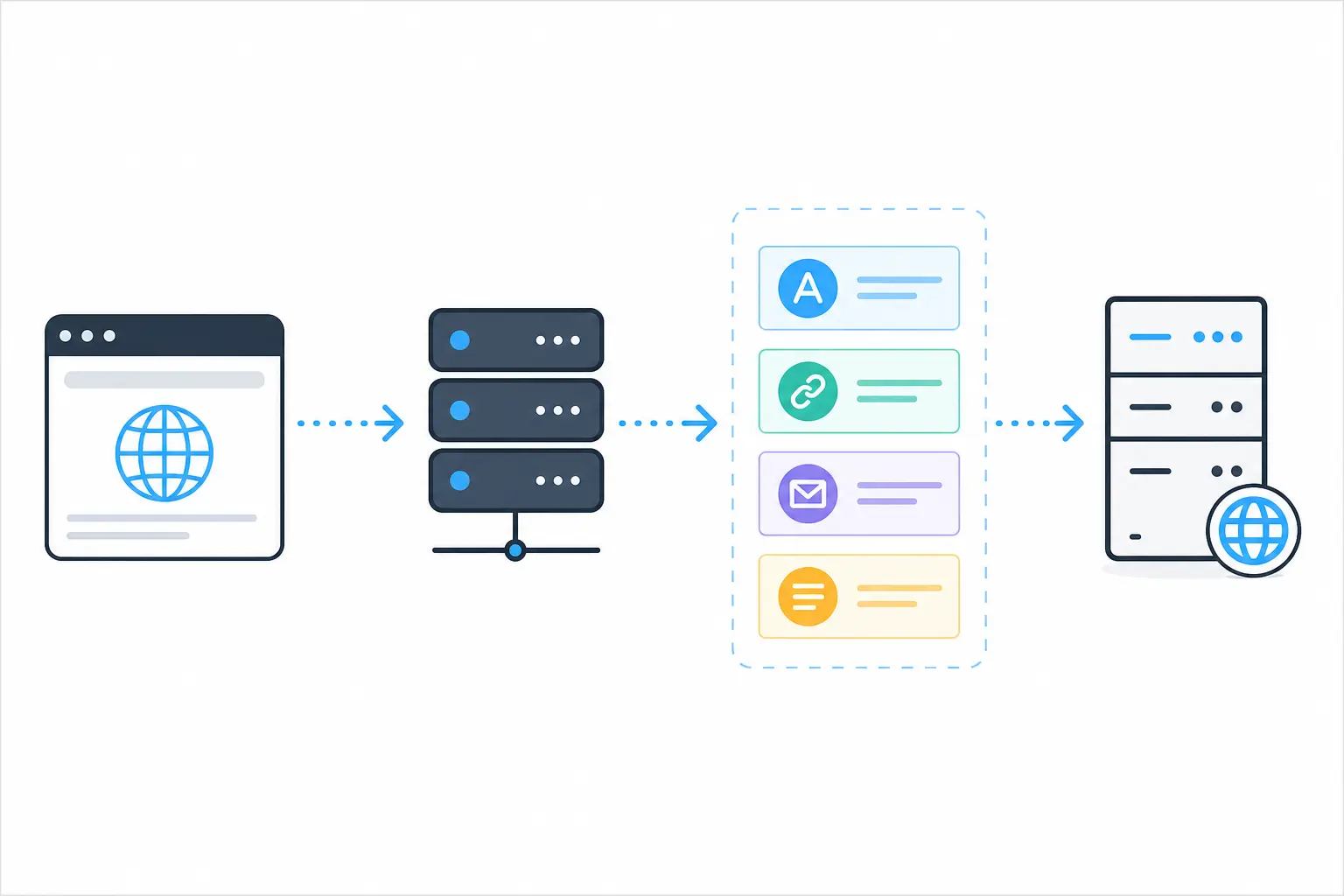
The extension runs only on supported registrar pages. It does not send your data to our servers—the CSV is built locally in your browser from the domain list you already have open.
Log in to a supported registrar and open the page where your domains are listed—portfolio, domain manager, or similar list view over https.
Click the MyDomains toolbar icon and choose Download Domains. The extension parses the visible list and saves a CSV with domain name, expiration, nameservers, registrar, and more.
Upload the CSV under Import / Export in MyDomains. New domains are added as pending until TXT verification completes; existing rows can be updated in bulk.
Each registrar has a dedicated parser tuned to its domain list layout. If a field is not visible on the page, the CSV column is left blank.
Choose your browser below. After installing, pin the extension to your toolbar so it is one click away when you are on a registrar page. Store listings are still under review—follow the steps here until the extensions appear on the official add-on pages.
Firefox
Install from Mozilla Add-ons once listed (submission pending). Requires Firefox 140 or later (desktop).
Pin to the toolbar
Chrome
Install the unpacked extension in Chrome or Chromium until the Chrome Web Store listing is approved. Extract the download to a local folder before loading—do not load directly from a .zip file.
chrome://extensions in Chrome.Pin to the toolbar
Unpacked extensions stay installed across browser restarts until you remove them.
Download for ChromeOnce pinned, exporting domains takes a few seconds from any supported registrar list page.
Step 1
Go to a supported registrar and open the page where your domains are listed. The extension only activates on matching https hosts—not on unrelated sites.
Step 2
Open the MyDomains popup. On a supported page you will see Download Domains. On other pages the button stays hidden.
Step 3
Upload the downloaded file in MyDomains under Import / Export. Review the import preview, then confirm to add or update domains in your portfolio.
Create a free accountExport from your registrar, upload the CSV, and keep every domain organized with reminders and folders.